
To ensure that your FBA notifications emails are delivered successfully and are not flagged as spam or spoofed, you need to verify your email address. Follow these steps to complete the verification:
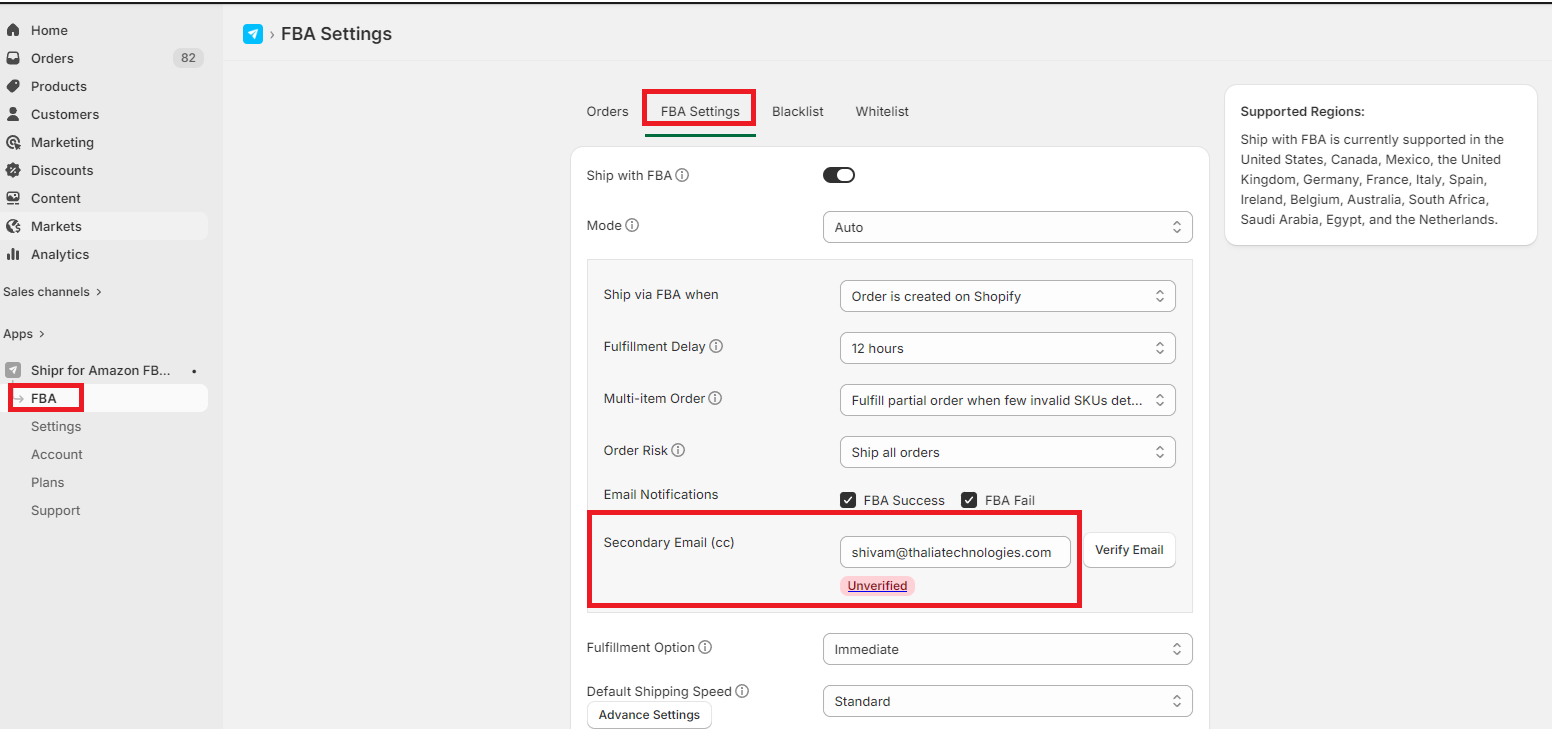
Go to your Shipr dashboard > Navigate to FBA > FBA Settings > Secondary Email (cc) > Enter your desired "email address" in the input box > Click Verify Email.
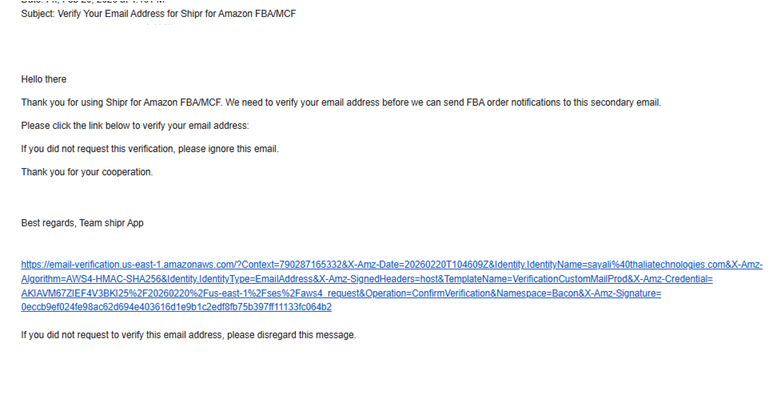
An email (from no-reply@e.shipr.thalia-apps.com) will be sent to the address you provided. Open this email and click on the verification link. The email that you will receive will look like this:
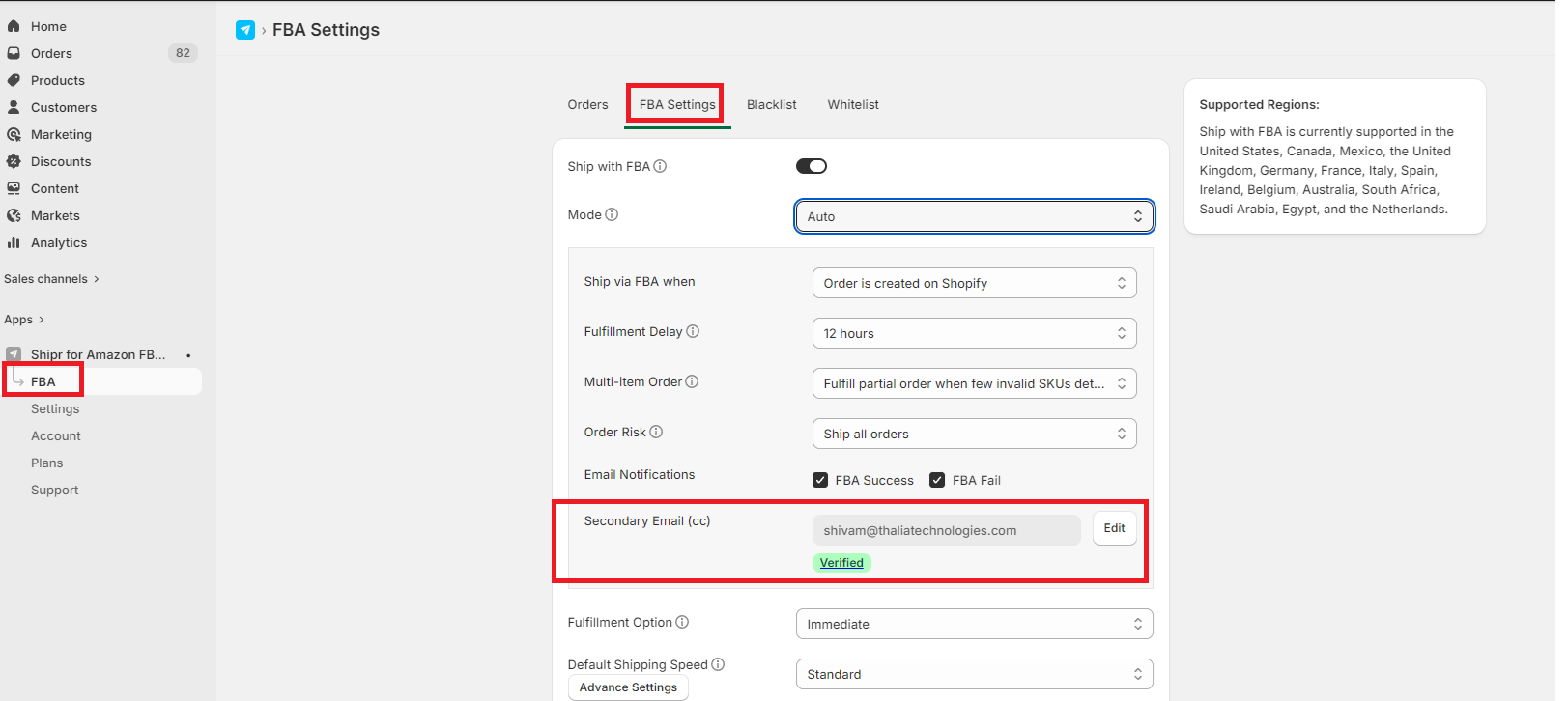
After clicking the link, you will be redirected back to your dashboard where you will see a "Verified" message.
Note:
- If you don’t see the verification email in your inbox, check your spam or junk folder.
- To update your email address, follow the same steps with the new address.
Verifying your email address will help ensure that emails are delivered properly and avoid being marked as spam.